


LightRoom Presets
What is a DNG File? The Simple Guide for Lightroom Preset Users
Dec
So you’ve just downloaded some amazing new Lightroom presets to make your photos pop, but instead of a simple filter, you found a bunch of files ending in “.dng.” Confused? Don’t be! You’re just one step away from transforming your photos. This simple guide will explain exactly what a DNG file is, why it’s the magic key for mobile presets, and how you can use it to create stunning, professional-looking photos in just a few taps.
What is a DNG File? (Explained in 10 Seconds)
Think of a DNG file as a special kind of photo that has all the editing information of a preset—like brightness, color, and contrast—saved directly inside it. It’s essentially a “smart photo” that carries the editing instructions with it. This is the secret to installing and using professional presets on the free Adobe Lightroom mobile app.
DNG Meaning: The ‘Digital Negative’ RAW File
DNG stands for Digital Negative. It’s a universal image format created by Adobe, the same company that makes Lightroom and Photoshop. Its purpose was to create a single, unified format for RAW photos. A RAW file is like a digital version of a film negative; it captures all the raw, unedited data straight from a camera’s sensor, giving you maximum flexibility when editing.
DNG vs. JPG: What’s the Difference for Editing?
The difference is huge! A standard JPG file is a compressed, finalized image. Most of the original camera data has been processed and discarded to create a smaller file size. A DNG file, on the other hand, is flexible and holds all that rich, unedited photo data. This makes DNG files the perfect container for applying, saving, and sharing complex editing settings, which is exactly what a preset is!
How DNG Files Power Your Lightroom Mobile Presets
Now for the most important part: understanding why this format is your new best friend for editing on the go. DNG files are the simple workaround that makes professional, one-click editing possible for everyone, right from their phone.
Why Mobile Presets Come as DNG Files
The free version of the Lightroom mobile app has a limitation: it can’t directly import the standard preset files (XMP files) that the desktop version uses. This is where the DNG file comes in as a clever solution. Since Lightroom Mobile can import photos, creators save the preset settings onto a DNG image. When you add that DNG to your Lightroom app, you’re not just adding a picture—you’re importing all the editing data attached to it.
How to Install DNG Presets on Lightroom Mobile (Easy Steps)
Getting your new look from a DNG file into Lightroom is incredibly easy. Just follow these simple steps:
- Download & Unzip: First, download your preset pack and unzip the folder on your phone. You’ll see the DNG image files inside.
- Add to Lightroom: Open the Lightroom Mobile app and create a new album for your presets. Add the DNG files to that album just like you would any other photo from your camera roll. They might look like blank or strange pictures—that’s normal!
- Copy the Settings: Open one of the DNG images in Lightroom. Tap the three-dots icon (…) in the top-right corner and choose ‘Copy Settings.’
- Paste on Your Photo: Now, open one of your own photos that you want to edit. Tap the same three-dots icon (…) again, but this time, choose ‘Paste Settings.’ Your photo will instantly transform!
- Save Your Preset: To use it again and again, tap the three-dots icon (…) one last time and select ‘Create Preset.’ Give your preset a name, save it, and it will now be available in your ‘Presets’ panel for one-click editing.
DNG vs. XMP: Presets for Mobile vs. Desktop
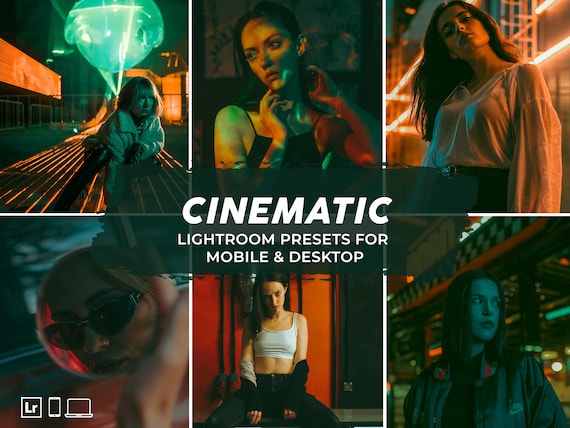
To avoid any confusion, it’s helpful to know the difference between the two main preset file types. DNG files are the standard for Lightroom Mobile presets, while XMP files are used for the desktop versions of Lightroom (Classic and CC). The best preset packs will give you both, so you can edit seamlessly whether you’re at your desk or on the go. All of our packs include both DNG and XMP files for ultimate flexibility. Why limit your creativity to just one device? Get presets for both Mobile & Desktop now!
Unlock Your Creativity with High-Quality DNG Presets
Now that you know how DNG files work, you can unlock a world of creative possibilities. Instead of spending hours manually editing, you can achieve a stunning, consistent look in seconds.
What to Look for in a Quality Preset Pack
When shopping for presets, always check for a few key things to ensure you’re getting the best value. First, make sure the pack includes DNG files for easy mobile installation. Second, look for clear, easy-to-follow installation guides (like videos or PDFs). Finally, choose styles and themes that genuinely match your photography aesthetic to create a signature look you’ll love.
Transform Your Photos with Our Best-Selling Presets
Our professional presets are designed to help you create beautiful photos effortlessly. Each pack is delivered instantly with both DNG files for mobile and XMP files for desktop. They are perfect for Instagram influencers, bloggers, photographers, and anyone who wants to elevate their photos and create a cohesive, eye-catching feed. We provide step-by-step video guides to make installation a breeze, so you can start editing in minutes.
FAQs About DNG Files
Can I open a DNG file without Lightroom?
Yes, many photo viewing and editing applications can open DNG files since it’s a type of image file. However, to use the embedded preset settings, you need to open it in Adobe Lightroom.
Is a DNG file the same as a RAW file?
A DNG file is a specific type of RAW file. While many cameras have their own proprietary RAW formats (like .CR2 for Canon or .NEF for Nikon), DNG is a universal, open-source RAW format created by Adobe.
Why does my DNG file look like a weird or blank picture in my camera roll?
This is completely normal! The DNG is just a container for the preset data. The preview image itself doesn’t matter. Once you import it into Lightroom and copy its settings, it has done its job.
Do I need to keep the DNG files after I create the preset in Lightroom?
Once you have successfully used the ‘Create Preset’ function inside Lightroom Mobile, the settings are saved in the app. You no longer need the original DNG file for that preset and can delete it from your library to save space.
Can I use DNG files on the desktop version of Lightroom?
Yes, you can. However, the desktop version of Lightroom makes it even easier by allowing you to directly import XMP preset files, which is the standard for desktop workflows. Our packs include both to make it simple on any device.
Are DNG files safe to download?
Absolutely. When you download them from a reputable source like BestLightroomPresets.com, DNG files are just image files and are completely safe for your phone and computer.
Now you’re no longer a beginner—you’re a DNG expert! You understand that these little files are the key to unlocking fast, professional photo editing on your phone. Trusted by over 100,000 photographers and creators, our presets come with everything you need to succeed, including instant downloads for both mobile (DNG) and desktop (XMP). Ready to create amazing photos? Shop our top-rated presets!
