


LightRoom Presets
Free LUTs: Download 10+ Stunning LUTs for Cinematic Videos
Dec
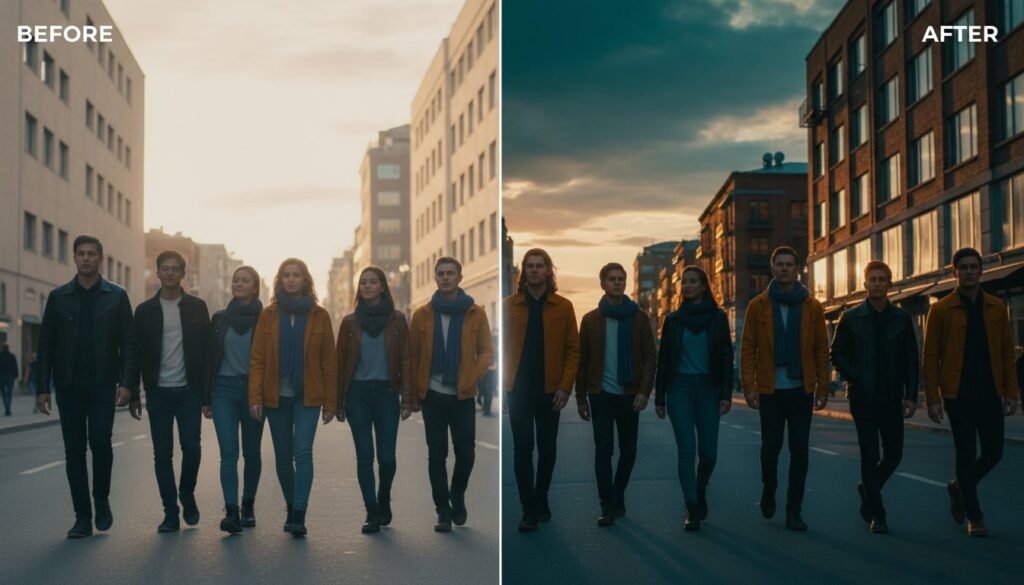
Want to instantly elevate your video editing and achieve that professional, cinematic look you see everywhere? You’re in the right place. With our handpicked collection of the best free LUTs, you can transform your flat, boring footage into stunning, vibrant art with just one click. This guide will not only give you an incredible free download but also teach you how to create a consistent, beautiful look across all your photos and videos.
What Are LUTs? (And How Are They Different From Presets?)
So, what exactly are these magical files? Think of LUTs as “presets” or “filters,” but specifically for your videos. A LUT (which stands for Look-Up Table) is a file that contains mathematical instructions to remap the color and tone of an image. In simple terms, it tells your video editing software how to change the colors in your footage to create a specific mood or style. The most incredible benefits are the convenience and the professional quality you can achieve instantly, turning your raw clips into gallery-worthy art.
LUTs vs. Presets: A Simple Breakdown
While they achieve similar goals, LUTs and presets are designed for different media. You should use LUTs (.cube files) for video color grading in popular software like Adobe Premiere Pro, DaVinci Resolve, or Final Cut Pro. On the other hand, you use Presets (.XMP or .DNG files) for one-click photo editing, primarily in Adobe Lightroom. The real magic happens when you use both to create a cohesive brand, ensuring your video content on YouTube and your photos on Instagram share the same signature style.
Why Use LUTs? The Top 3 Benefits
- Save Hours of Time: Stop wasting time on manual color correction and complex grading. Applying a LUT takes seconds and gives you a polished, professional starting point.
- Achieve a Consistent, Cinematic Style: Whether you’re creating a vlog, a short film, or social media content, LUTs ensure every clip in your project shares the same beautiful aesthetic.
- Replicate Your Favorite Looks: Easily achieve popular styles from your favorite movies and content creators, from the iconic teal-and-orange look to moody, atmospheric tones.
Your Free LUTs Download: 10+ Professional Styles
Ready to transform your videos? We’ve put together an exclusive pack of high-quality, professional-grade free LUTs to get you started. These styles are perfect for vlogs, social media reels, wedding films, travel videos, and so much more. Best of all, they are fully compatible with Premiere Pro, Final Cut Pro, DaVinci Resolve, and other software that supports .cube files.
Included in the Free Pack:
- Cinematic Teal & Orange: Instantly get that blockbuster movie feel that makes your footage pop.
- Moody & Dark: Create dramatic, emotional, and atmospheric scenes with deep tones and rich contrast.
- Vintage Film Tones: Get a timeless, retro aesthetic with beautiful, nostalgic colors that feel like classic film.
- Bright & Airy: Perfect for travel vlogs, lifestyle content, and wedding films, this look is clean, fresh, and beautiful.
Ready to get started? Download Your Free LUTs Now & Transform Your Videos!
How to Install & Use LUTs (Step-by-Step Guide)
No experience? No problem! Applying a LUT is incredibly simple and only takes a minute. Below are our simple guides for the most popular video editing platforms to get you up and running in no time.
How to Use LUTs in Adobe Premiere Pro
Applying a LUT in Premiere Pro is fast and easy. First, open the “Lumetri Color” panel (you can find it under Window > Lumetri Color). Inside the panel, navigate to the “Creative” tab. Here, you’ll see a “Look” dropdown menu. Simply click it, select “Browse…”, and locate the .cube LUT file you downloaded. Once applied, you can use the “Intensity” slider right below it to adjust the strength of the effect and perfect your look.
How to Use LUTs in DaVinci Resolve & Final Cut Pro
The process is just as simple in other programs. In DaVinci Resolve, go to the Color page, right-click on a node, find the “LUTs” menu, and select your downloaded file. In Final Cut Pro, open the Effects Browser, find the “Color” category, and drag the “Custom LUT” effect onto your clip. Then, in the inspector window, use the dropdown to choose your LUT file. It’s that easy!
From Video to Photo: Get a Cohesive Look with Presets
Do you love the new style you’ve created for your videos? Don’t stop there! You can get the exact same professional look for all your photos, too. By matching your aesthetic, you can build a powerful and consistent brand across Instagram, TikTok, your blog, and your professional portfolio. Our world-class Lightroom presets are the perfect partner to your new LUTs, giving you that one-click magic for all your still images.
Find the Perfect Lightroom Preset to Match Your Vibe
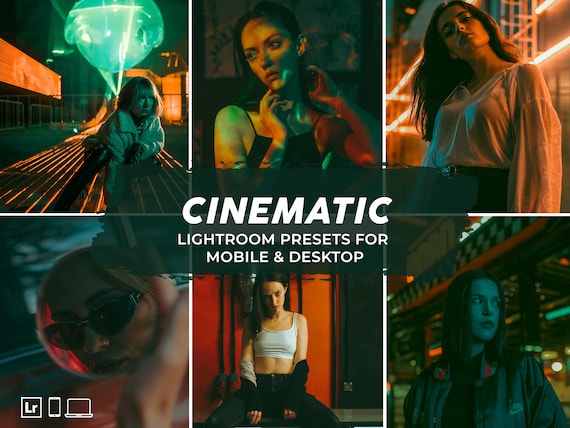
We’ve designed our preset collections to match the most popular creative styles. If you love the dramatic look of our Cinematic LUTs, you will be obsessed with our ‘Cinematic’ Lightroom preset pack. If you prefer the deep, atmospheric feel of our Moody LUTs, be sure to check out our ‘Dark & Moody’ presets for photos. We have a professional preset for every style and theme, guaranteed to elevate your photos in a single click. Shop Our Best-Selling Lightroom Presets Now!
Frequently Asked Questions About LUTs
What does LUT stand for?
LUT stands for Look-Up Table. It’s a technical term for a file that contains a fixed set of data that tells a program how to translate input color values into new output color values to change the look of an image or video.
Are these free LUTs compatible with mobile video editing apps?
Yes! Many popular mobile video editing apps, such as VN Video Editor and CapCut, now support the use of custom LUTs (.cube files). Check your app’s color or filter settings to find the import option.
Can I use a LUT on a photo in Photoshop or Lightroom?
Absolutely. In Photoshop, you can apply a LUT by adding a “Color Lookup” adjustment layer and loading your .cube file. While Lightroom’s main preset system is different, you can use LUTs by converting them into creative profiles.
Will these LUTs work with any camera footage?
Yes, these LUTs will work with footage from any camera, including DSLRs, mirrorless cameras, drones, and even your smartphone. For best results, they work exceptionally well on footage shot in a flat or LOG profile, as this gives the LUT more information to work with.
What is the difference between a .cube and a .3dl LUT file?
They are simply different file formats for LUTs. The .cube format is the most universally supported and is the industry standard for most modern video editing applications, which is why we provide our free LUTs in this format.
Now that you have the tools and the knowledge, nothing is stopping you from creating stunning, professional-quality content. You’ve downloaded your free LUTs for video and know how to achieve the same signature look on your photos. The next step is to explore the endless creative possibilities that await. Explore Our Top-Rated Lightroom Preset Bundles! and take your creative work to the next level today.
